Tutoriel intégration de Google Analytics!(Le PDF => )
Configuration pour la connexion à Google Analytics:
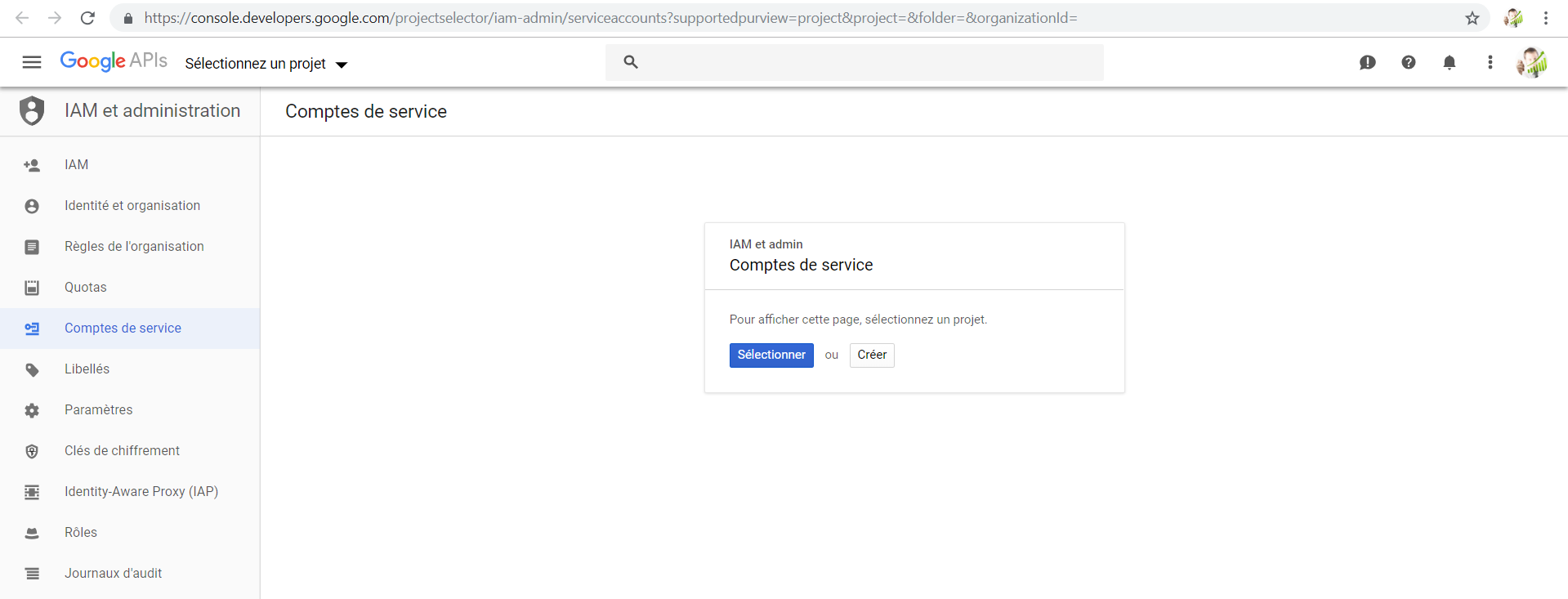
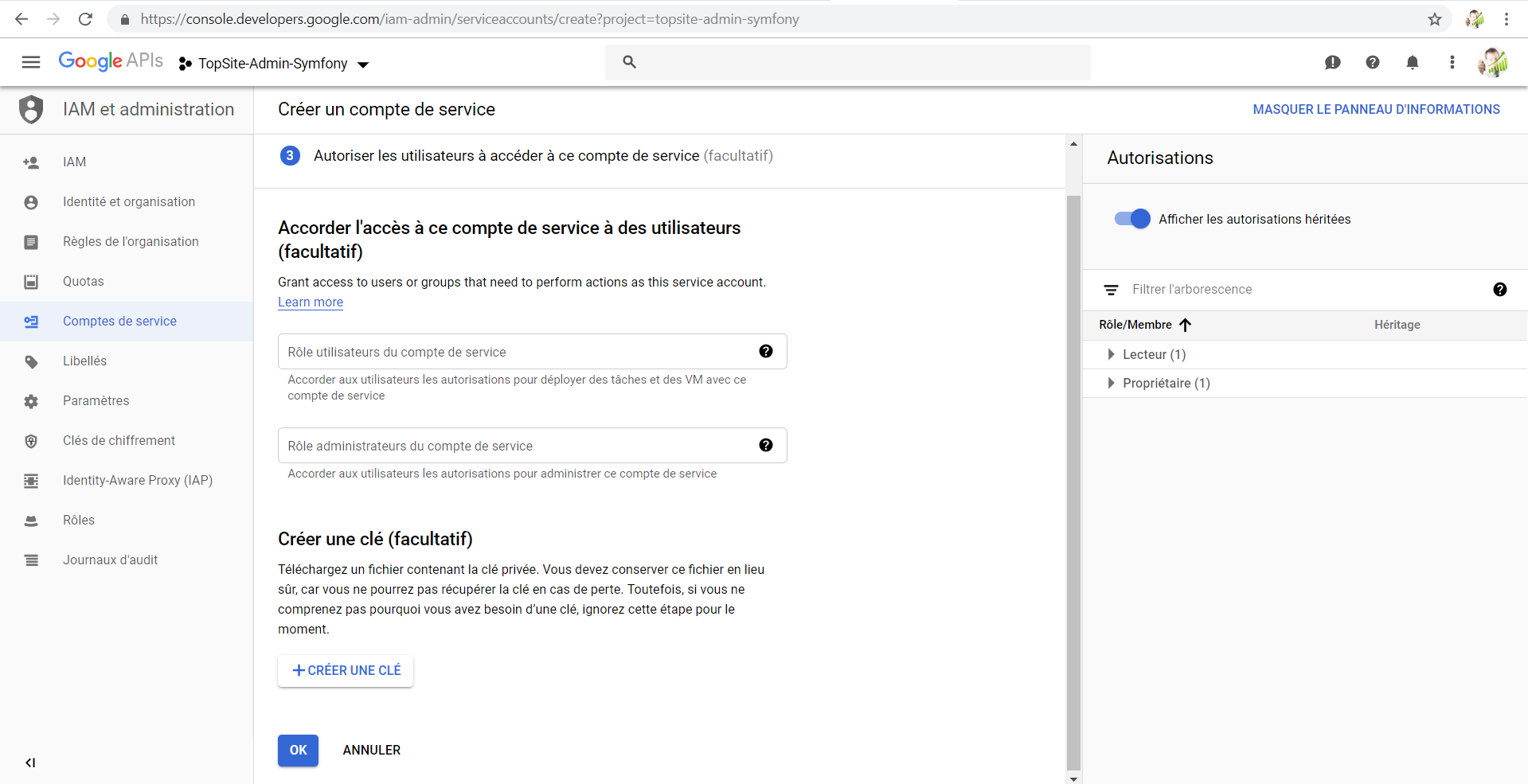
Create a service account on the Google Cloud Console by going to the following link: Google Cloud Console
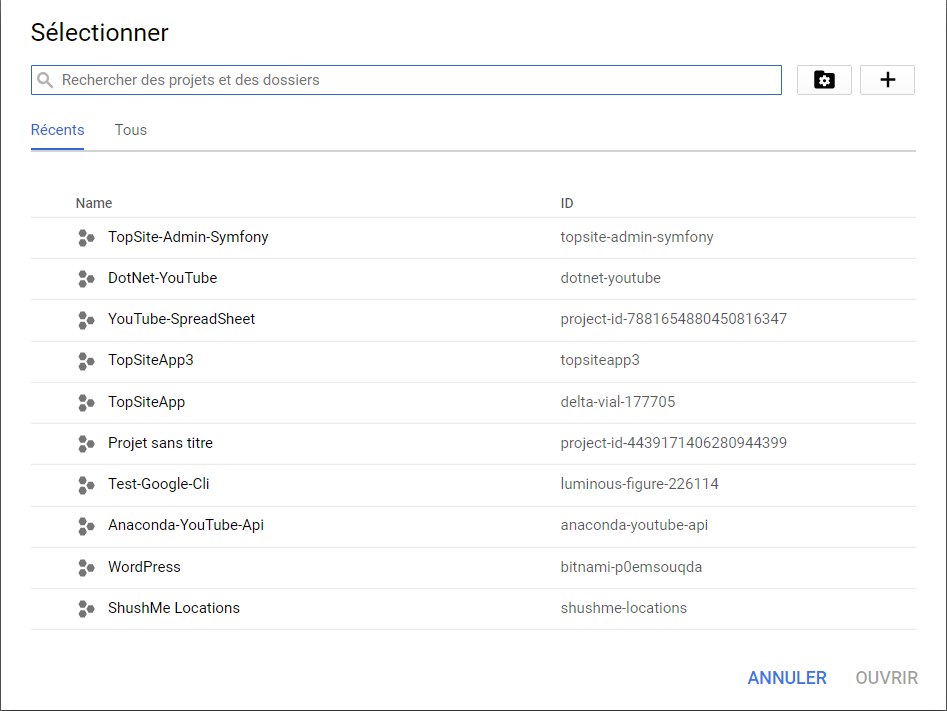
Select your corresponding project in the Google Cloud Console:
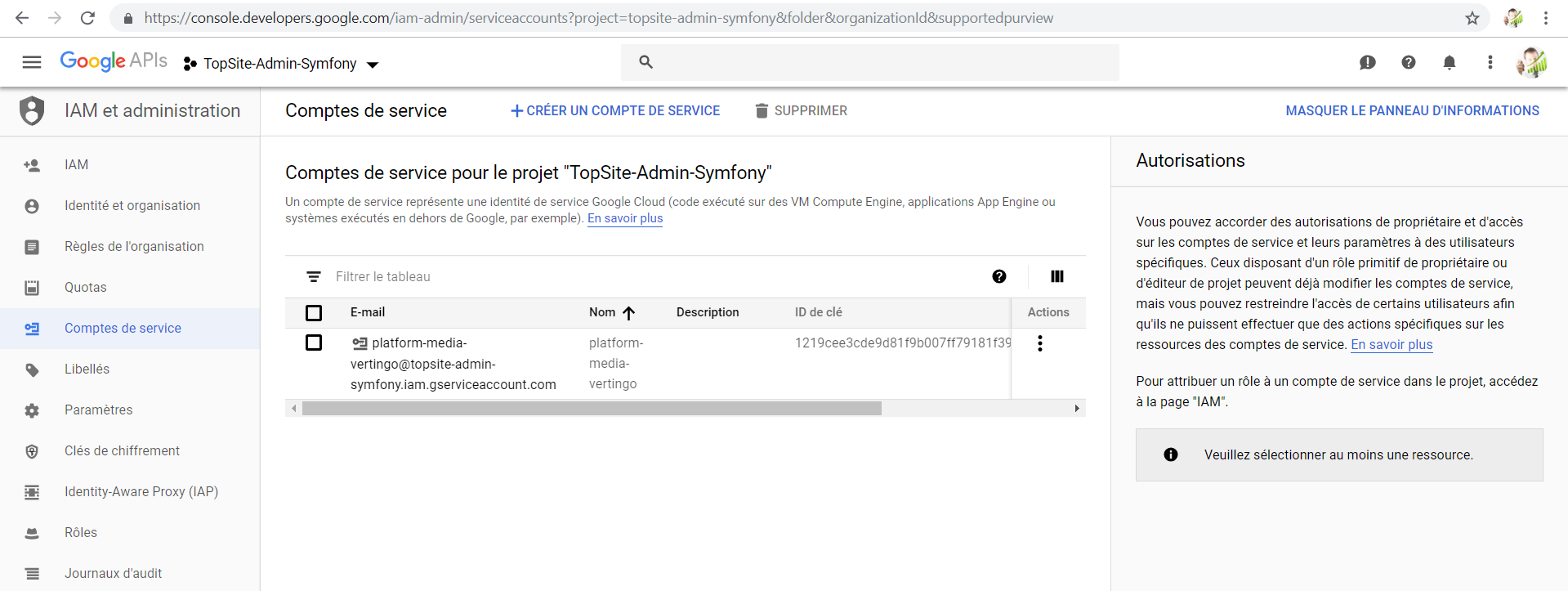
Create a service account by clicking on the plus button above:
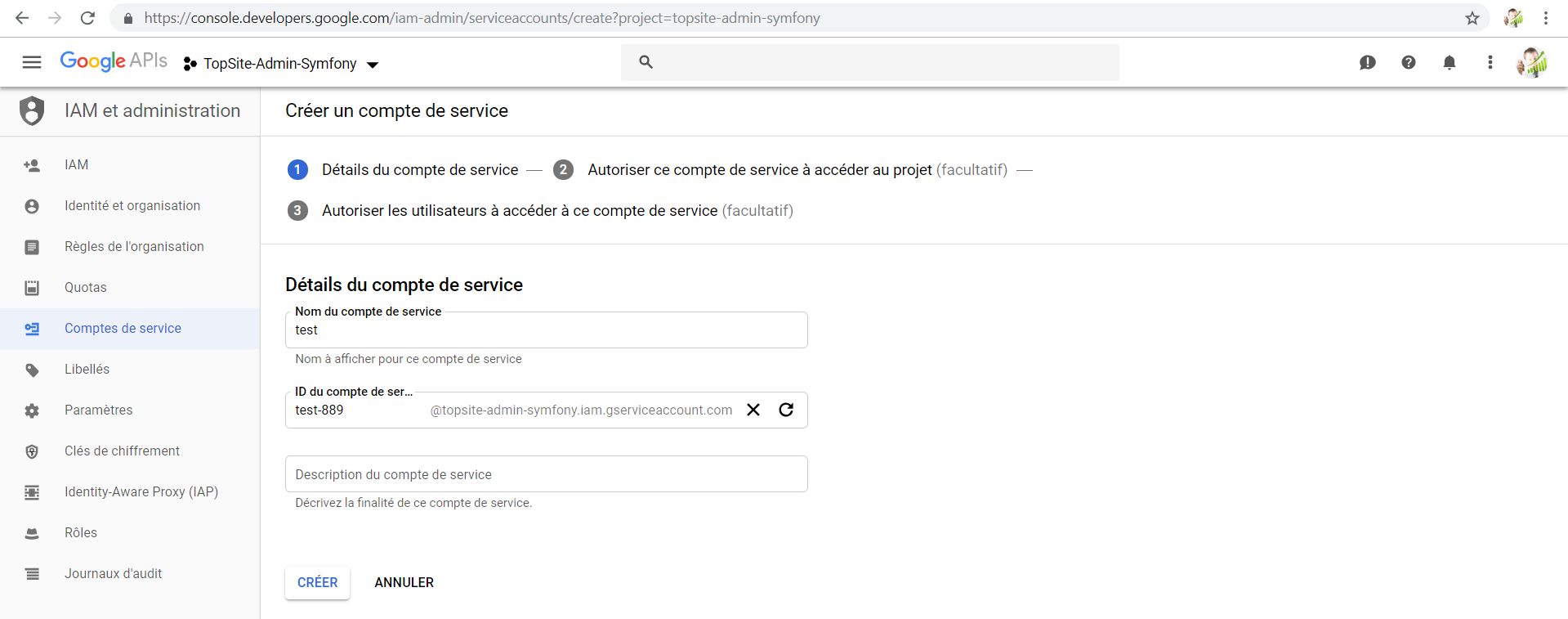
Name your service account:
Download your key in JSON format and place it in a folder named KeyFile in your project:
Once the service account is created, you can click the Generate New JSON Key button to create and download the key and add it to your project.
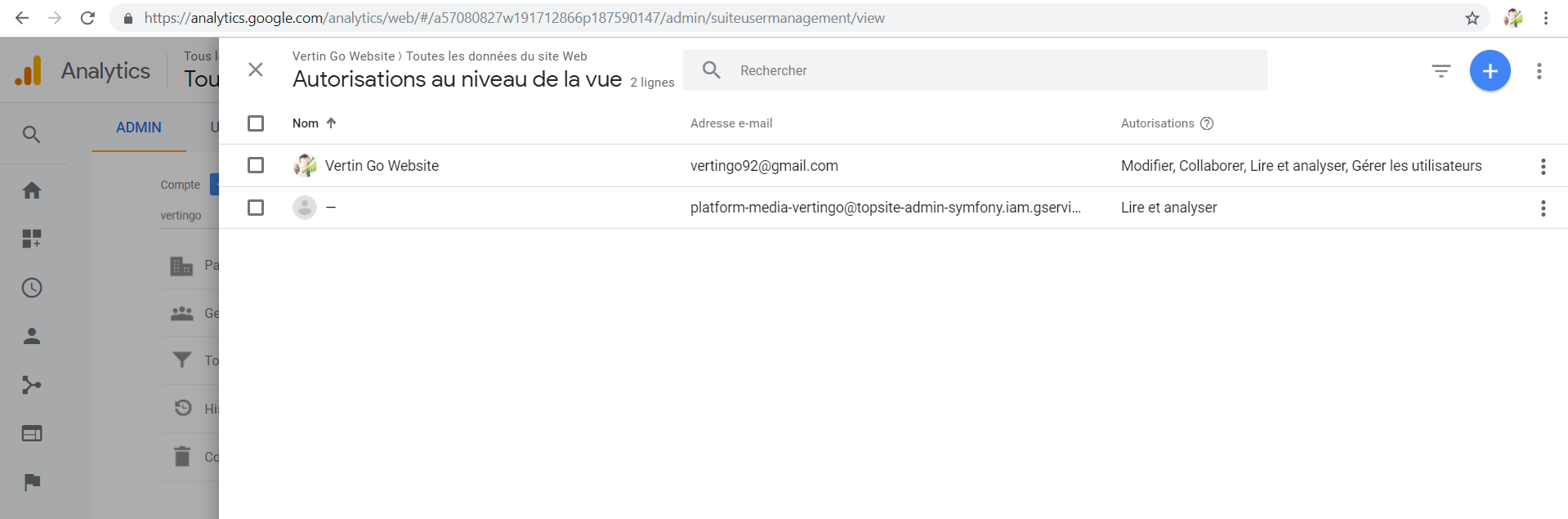
The service account you created in the previous step has an email address that you can add to any of the Google Analytics views you'd like to request data from.
It's generally best to only grant the service account read-only access. More illustrations below!
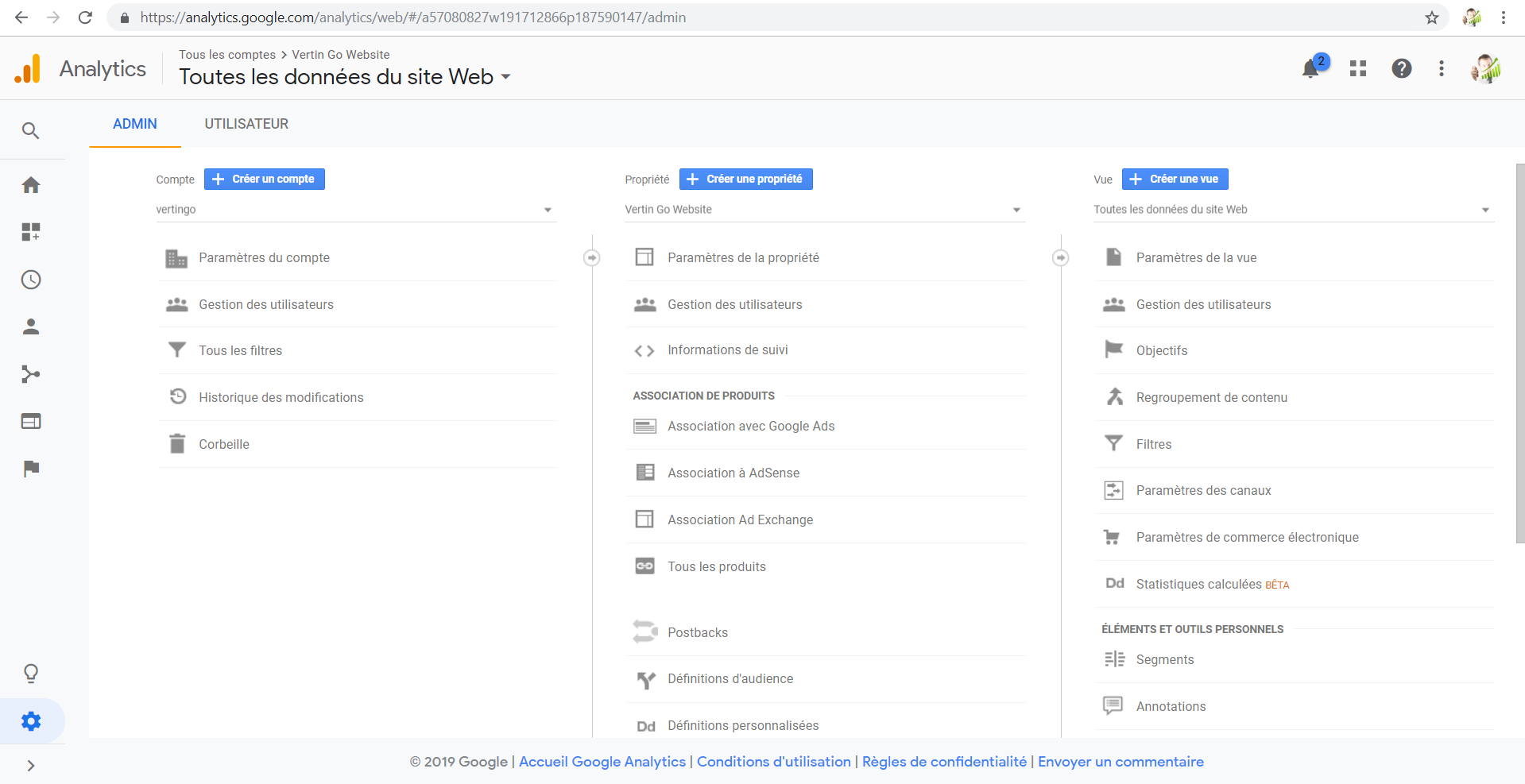
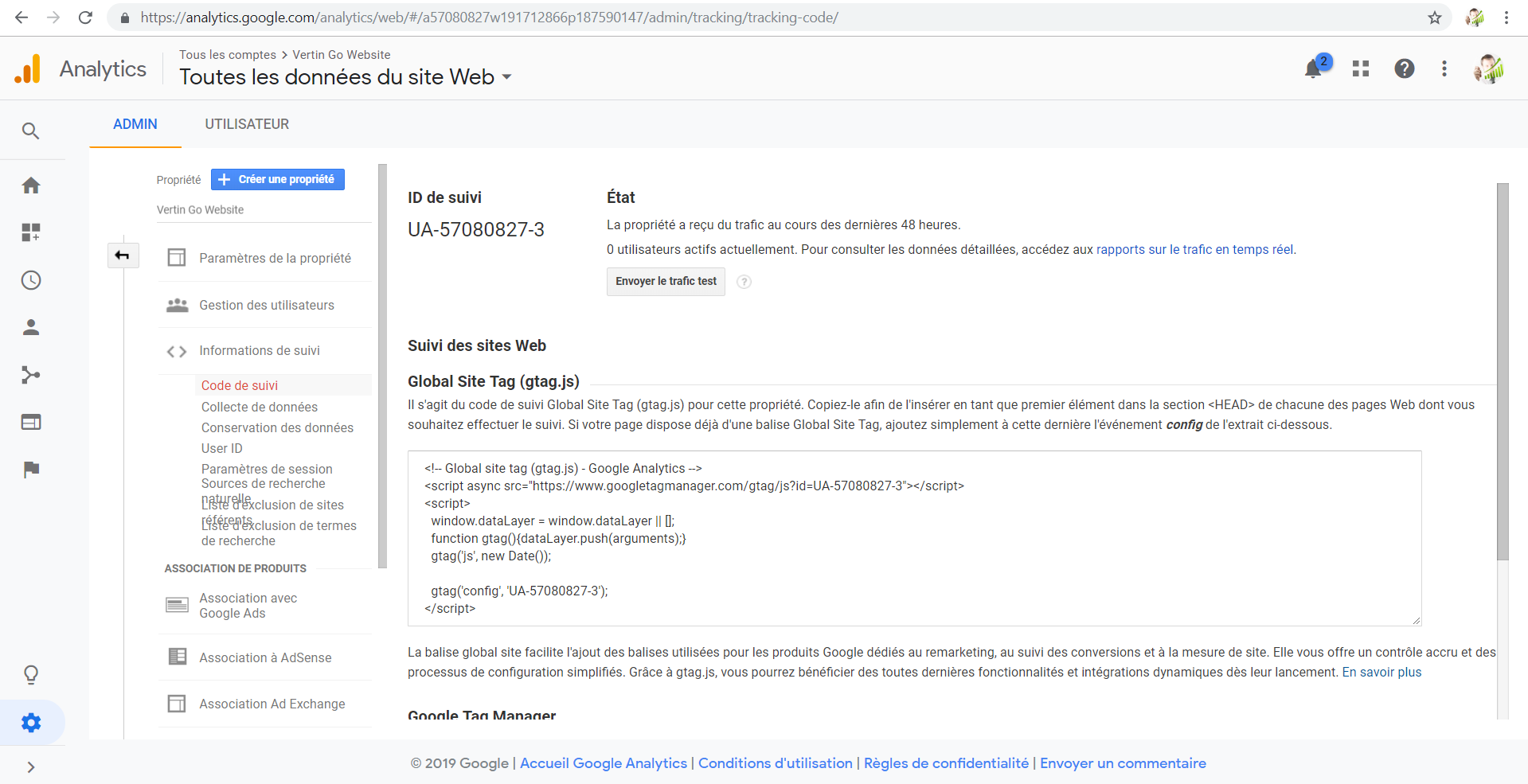
First create a property and copy/paste the follow code in the header section of your site:
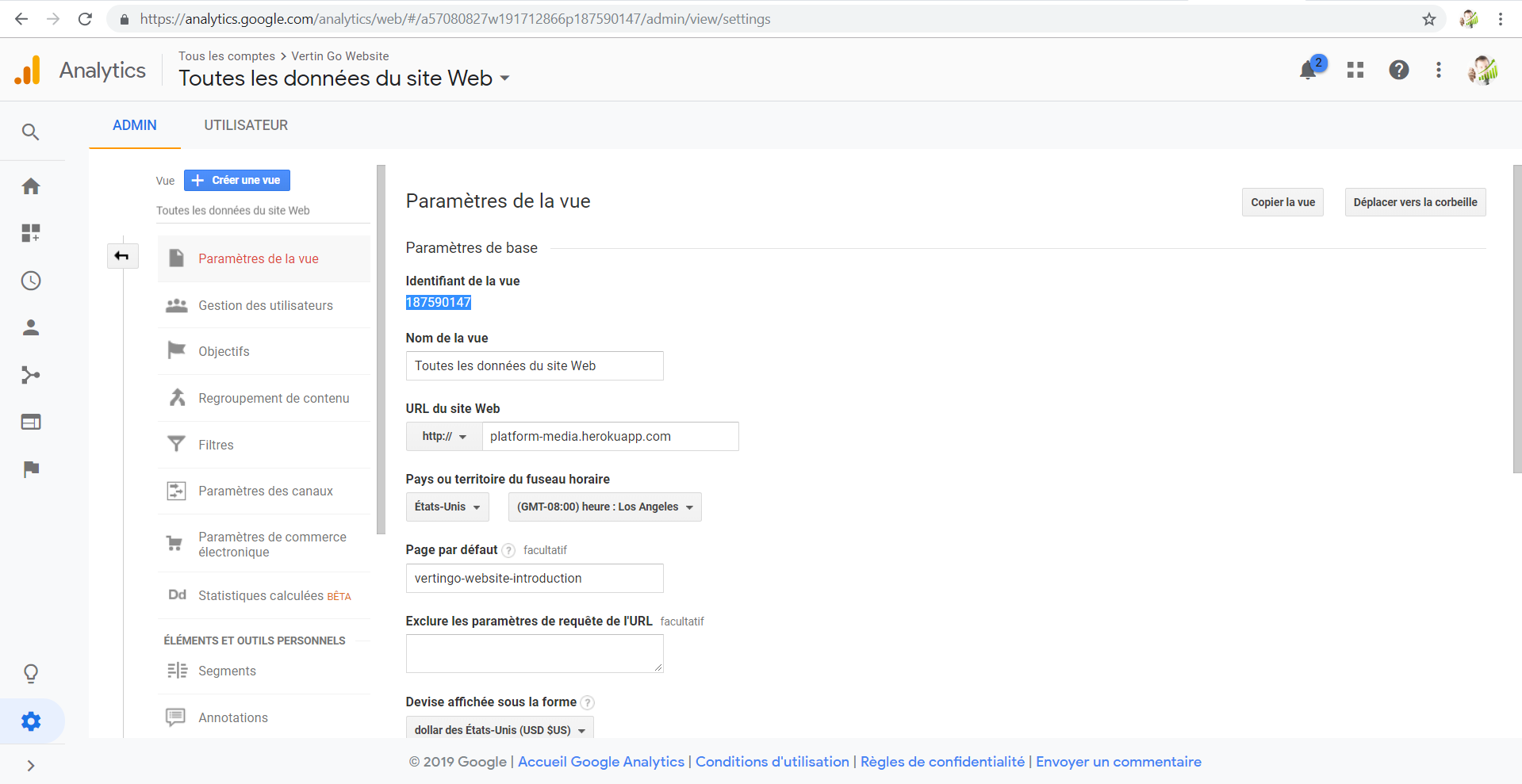
Then create a view and memorize the id of your view you will have to paste it in the HTML code which render statistics graphics:
To finish grant user rights to read and analyse in your view by adding a user with the email contained in your JSON key file:
Below how to recover your token in two differents ways:
First install the following dependency with Anaconda CLI!
Execute the following file with the command: python service-account.py
Above it is one way to recover your Token but below the way i recommend in my program is to used the getService() fonction
which recover the latest token each time we reactualise the page:
(Don't forget as well to specify the path to your keyfile.json recover on Google Cloud Console)
Place the following code between body tag in your HTML page:
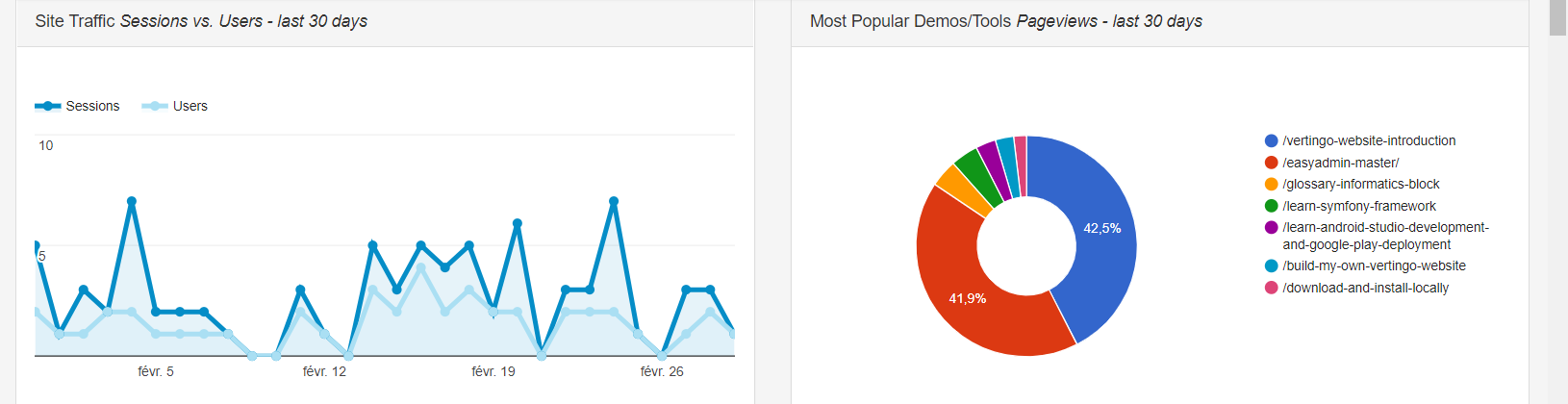
The balise below will render the graphics statistics about your website like illustrating just below:
Place the following code between body tag in your HTML page: